 InkWho
INKWHO GUIDE
How to check a webpage for AI writing
Use InkWho while you read an English article. There is no account to create and no need to upload the page.
1. Add InkWho to desktop Chrome
Open InkWho in the Chrome Web Store using desktop Chrome. Choose Add to Chrome, review the permissions and confirm if you want to install it. Use Chrome’s extensions menu to pin InkWho for easy access.
2. Open a public English article
Allow InkWho access to the site you want to check. Automatic analysis must be enabled in the extension menu. The first check may take a little longer.
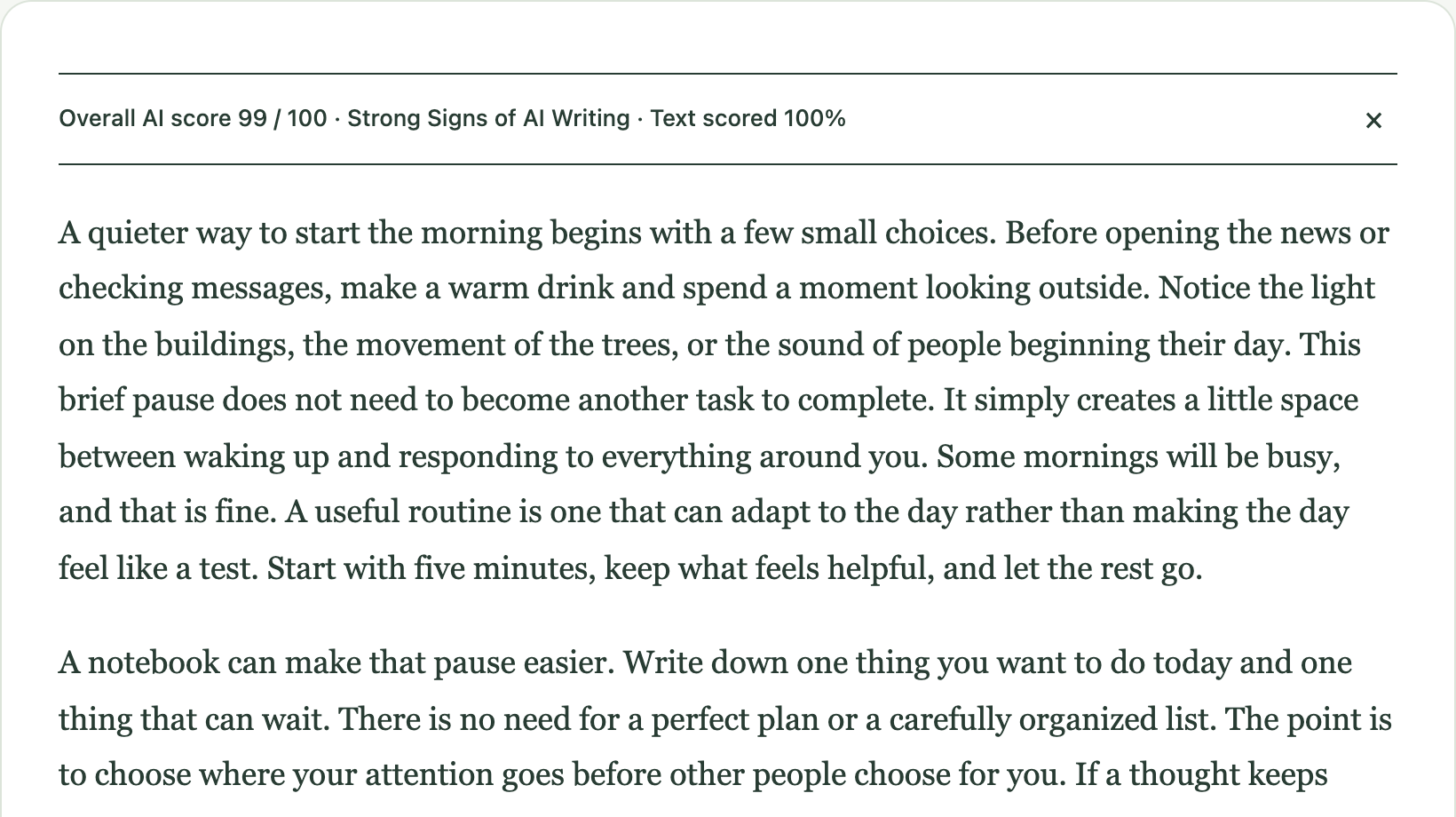
3. Read the score and coverage
A higher AI Writing Score suggests stronger AI-like writing patterns. Check the text coverage too: text that was not checked is not a human-written verdict.
4. Check a specific passage
Select a passage, then choose Analyze selection. Selecting text alone does not start a check. Very short text may not receive a score.
Keep your reading comfortable
Section scores are optional. Pause a website or switch off automatic analysis whenever you want. See controls and troubleshooting.
Use the result as a reading aid
A detector can be wrong. Use context and other evidence before drawing conclusions about who wrote something. Understand what AI writing scores can tell you.